Use Gemini through your browser, without paying for the Gemini API.
Connect Claude to your Gemini web session.
Gemini UI Bridge opens Gemini in a local browser, sends the prompt, waits for the result, saves the output, and returns it to your AI app.
Useful for personal workflows, not a production API.
The bridge uses the Gemini website like a careful human would. That makes it helpful for a local assistant setup, but login checks, UI changes, and some media downloads may still need your attention.
Tap a step and watch where the request goes.
The bridge lets another AI use Gemini through your signed-in browser session, without giving that AI your password, cookies, or a paid API key.
Claude sees tools like gemini_prompt and gemini_create_image. It reads the guide first so it does not waste your Gemini runs.
Run a simulated Gemini job and see what happens.
This demo does not call Gemini. It shows the bridge flow before you connect the real browser session.
You will see which tool gets used and where the output is saved.
The browser, saved output gallery, and Claude tools.
These are the main parts of the workflow: Gemini answering, outputs being saved, and Claude seeing the MCP tools.
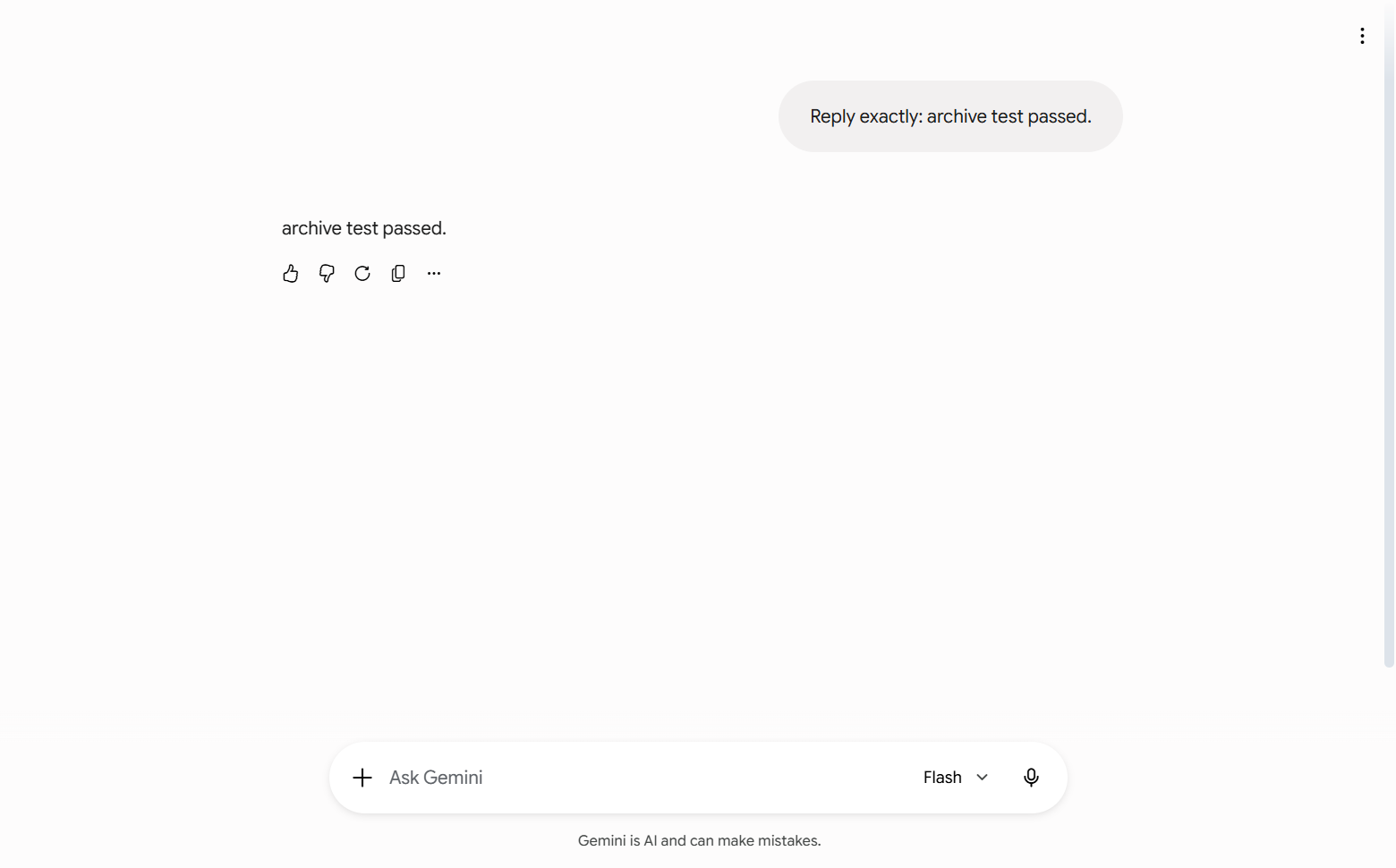
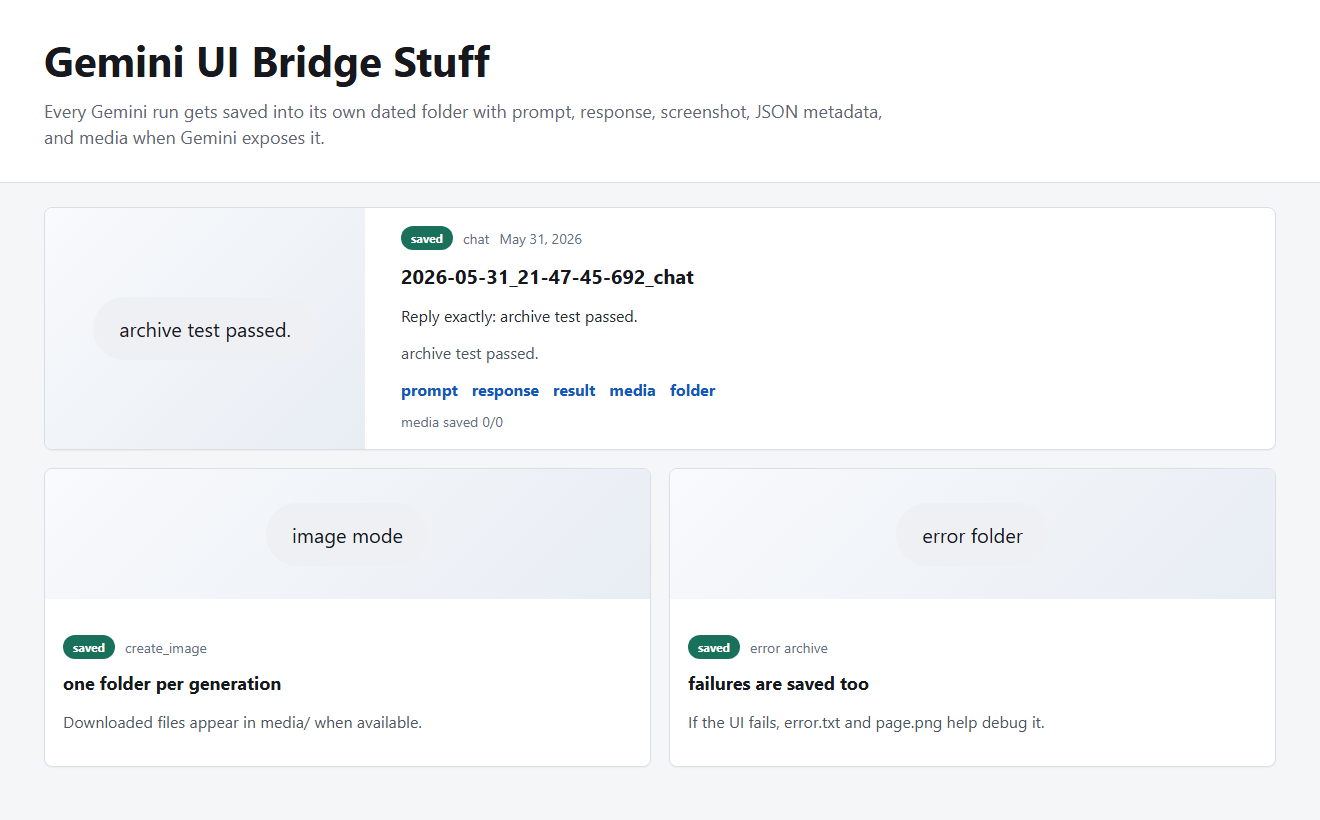
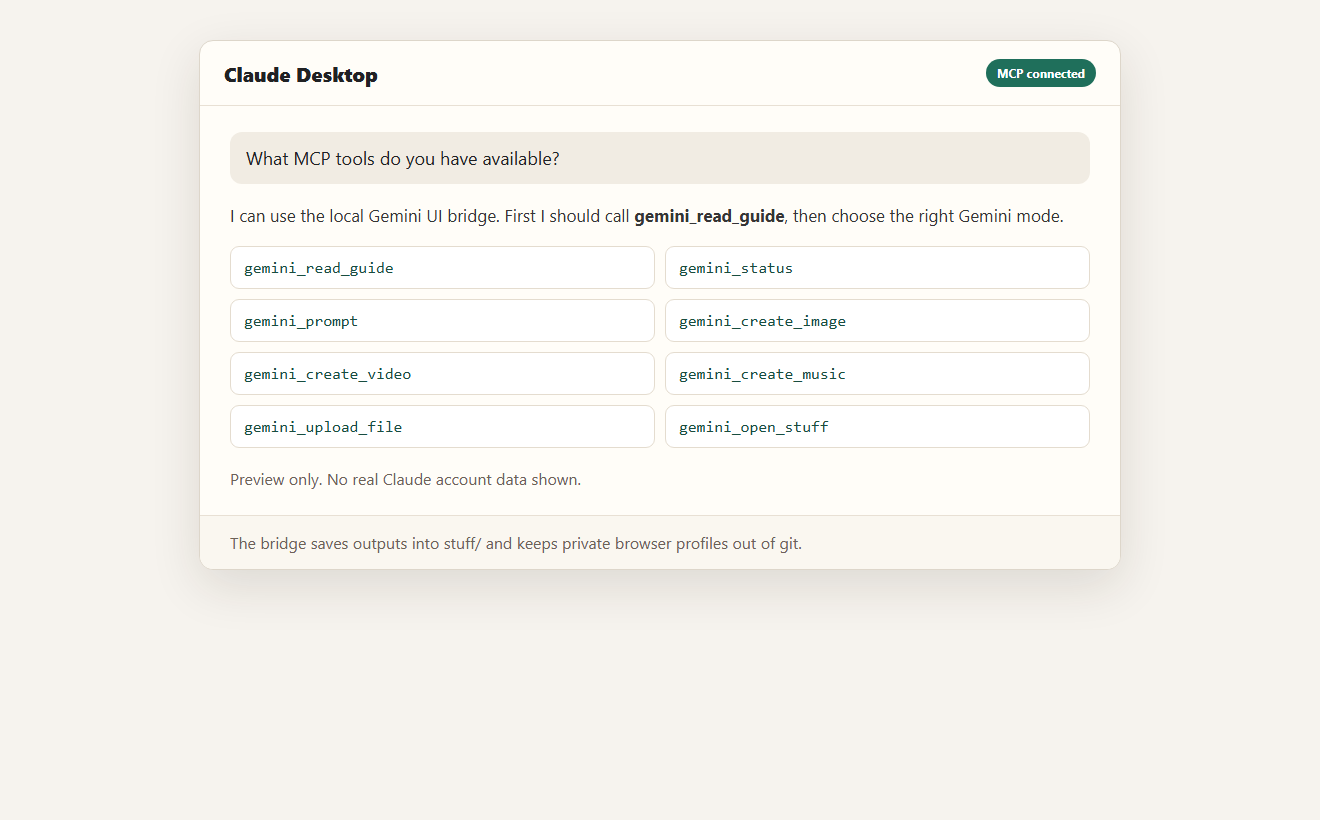
Pick what you want Gemini to do.
Claude gets focused tools instead of guessing where to click. Press a tool to see when it should be used.
Normal text chat through Gemini web. This is the best first test after login.
Keep private browser data out of GitHub.
This project controls a real browser profile. That profile is basically a logged-in browser, so it must stay local.
README, scripts, MCP server, static site, examples.
Local settings and optional bridge tokens.
Browser cookies and Gemini login session.
Private prompts, screenshots, generated media.
npm run security-check
git status --ignored
git pushInstall, log in, then connect the MCP server.
After login, add the MCP config to Claude Desktop and ask it: "Call gemini_read_guide, then gemini_status."